01
Start with what is real
Share your space
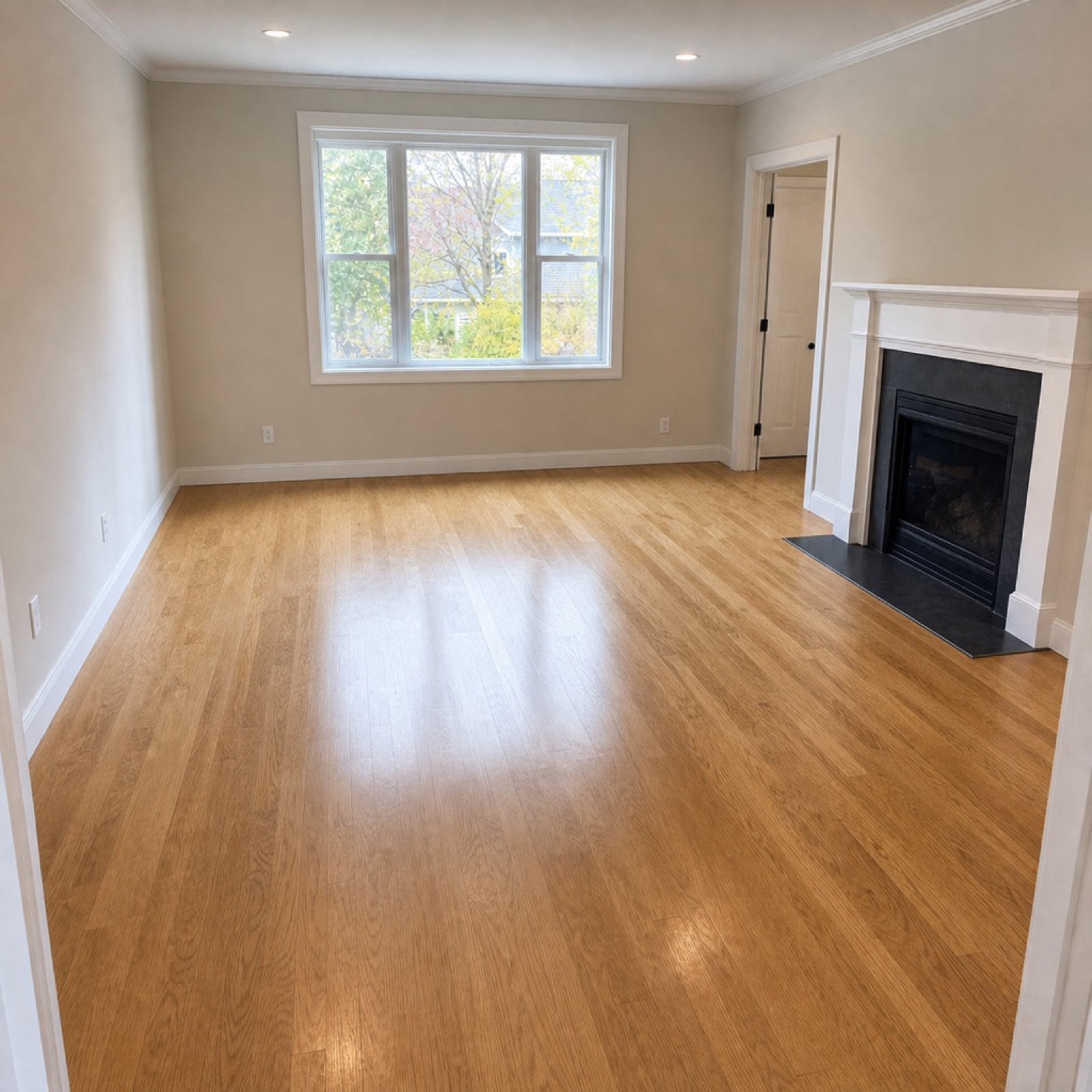
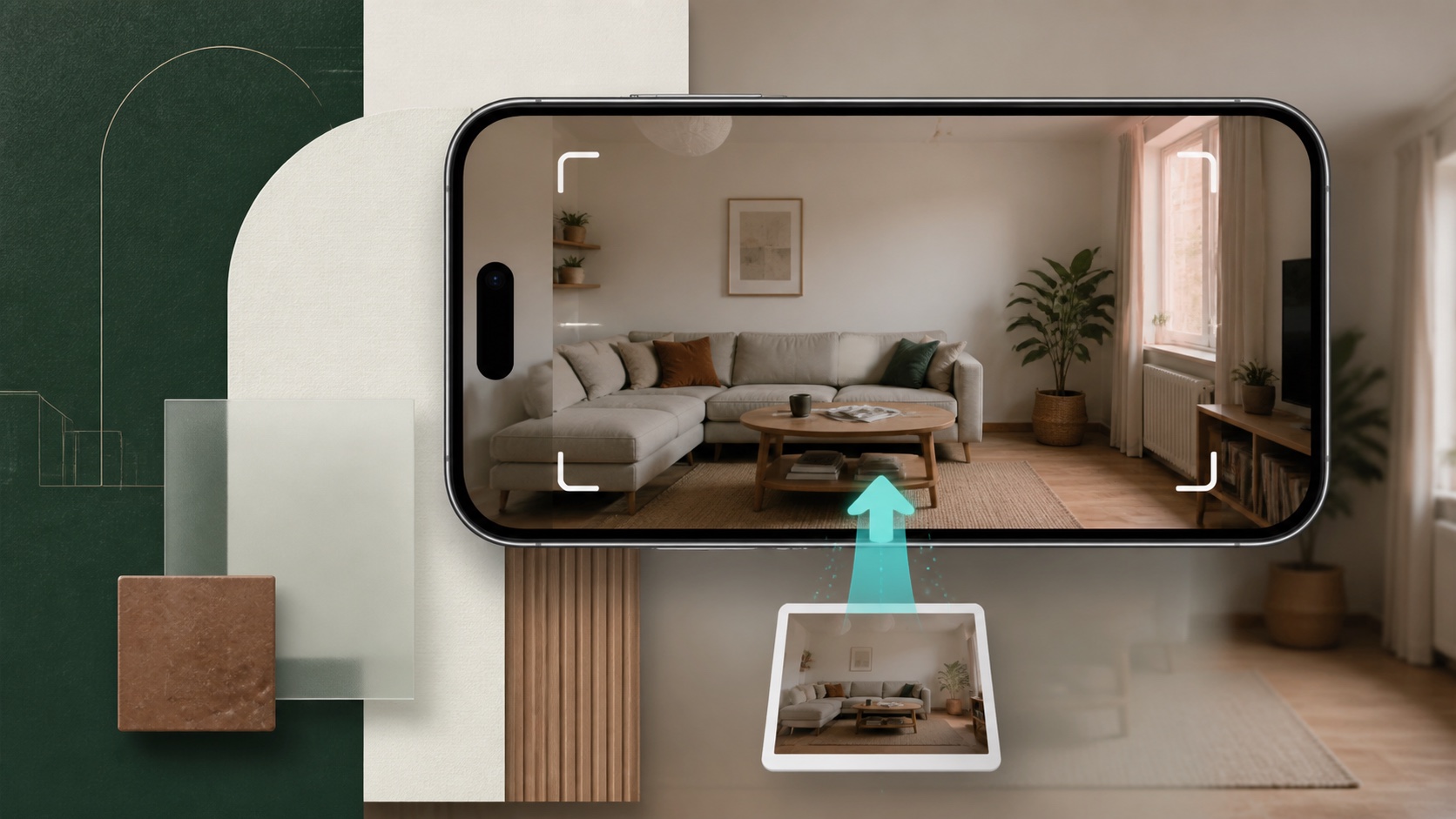
Add one clear photo of the room, garden or exterior you want to explore.
AI design for the spaces you live in
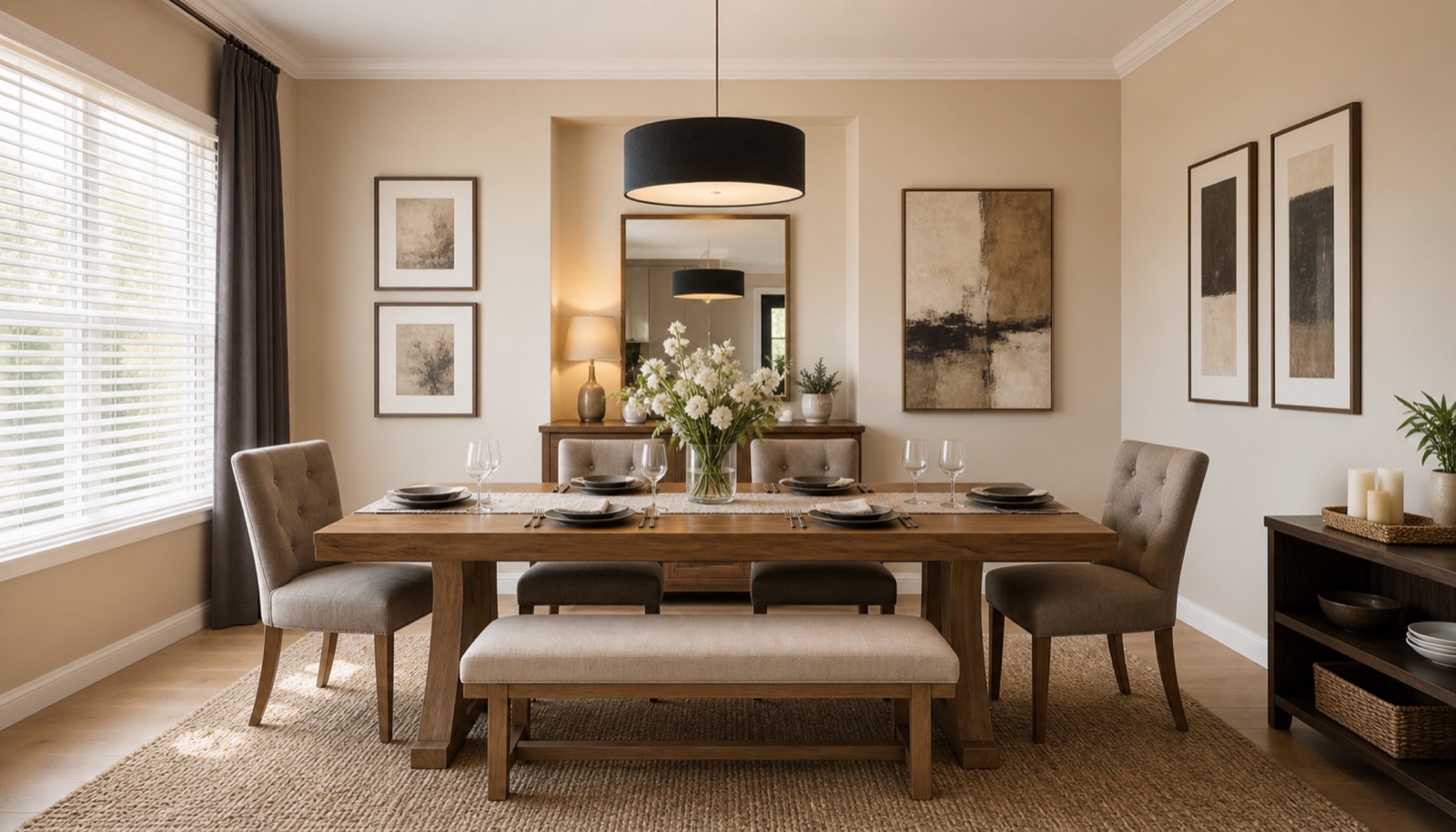
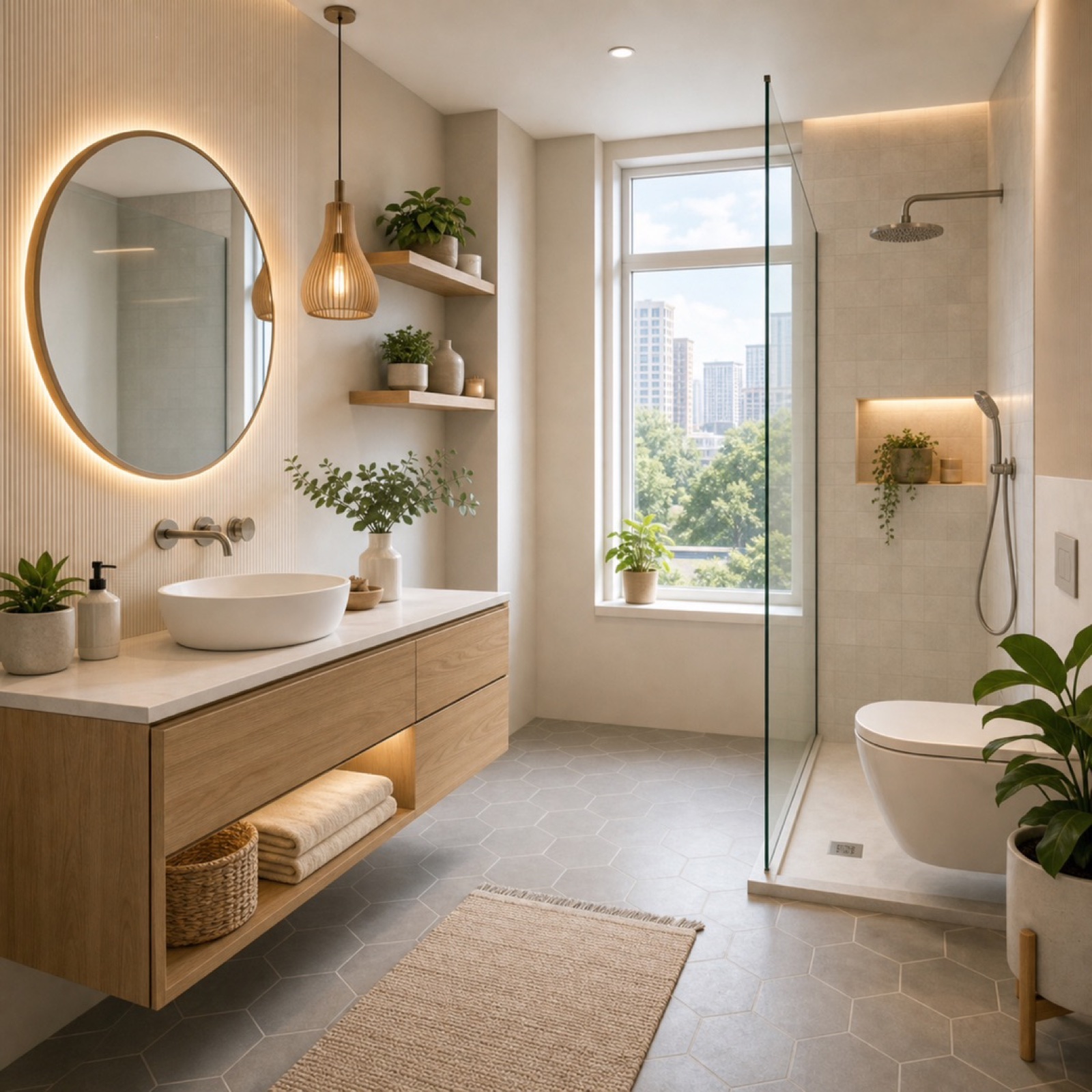
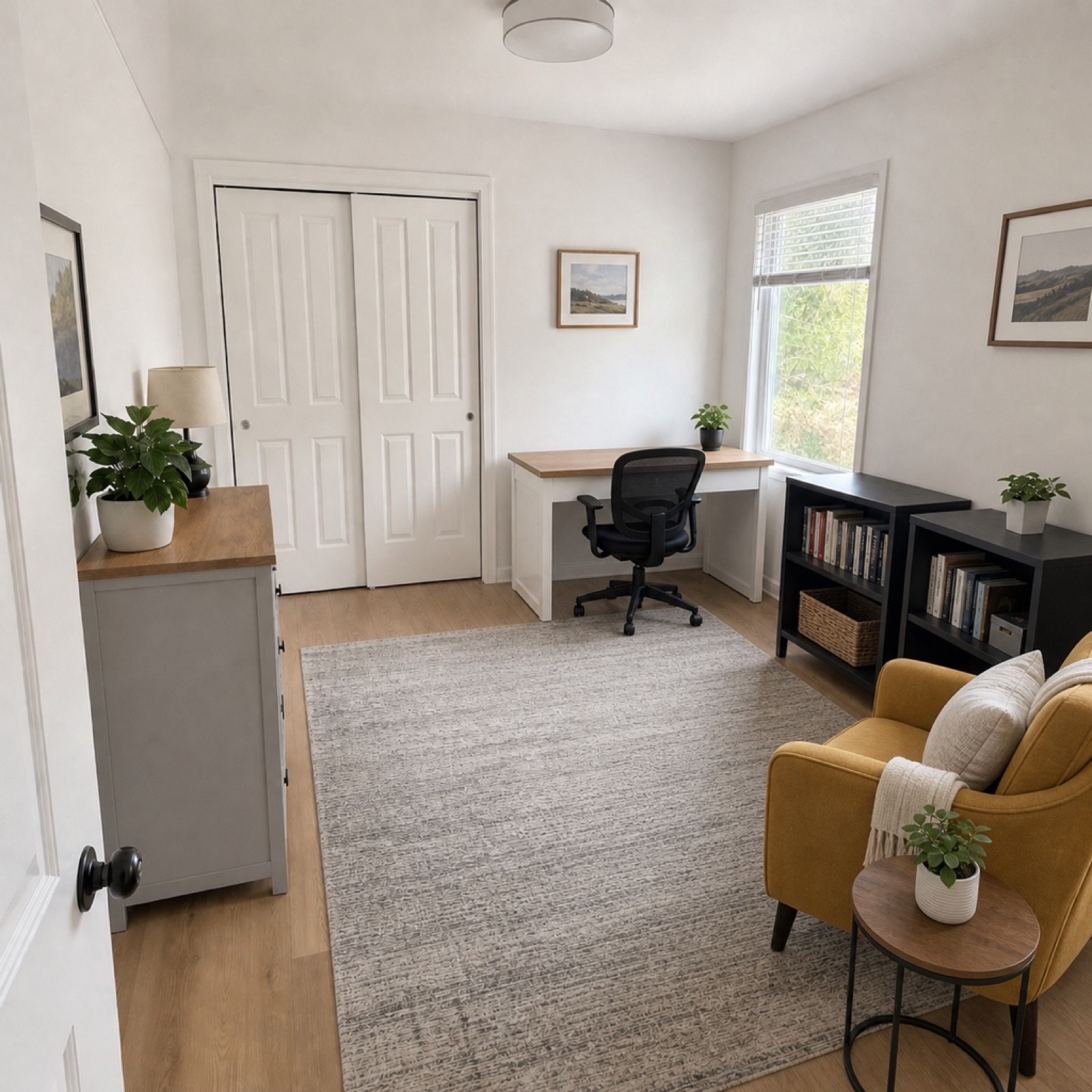
Upload a photo and explore new directions for rooms, gardens and exteriors—while keeping the place you know in view.
From your photo to a concept you can discuss.
Live feature demos
Switch between garden, exterior, paint and flooring previews. Each tool keeps the design question focused.
Use a dedicated tool when one object, layout or reference matters most.
How it works
Room.AI keeps the first step simple so you can spend more time comparing ideas.
See the full workflow ↗Add one clear photo of the room, garden or exterior you want to explore.
Pick the tool that matches the decision in front of you, then describe where you want to go.
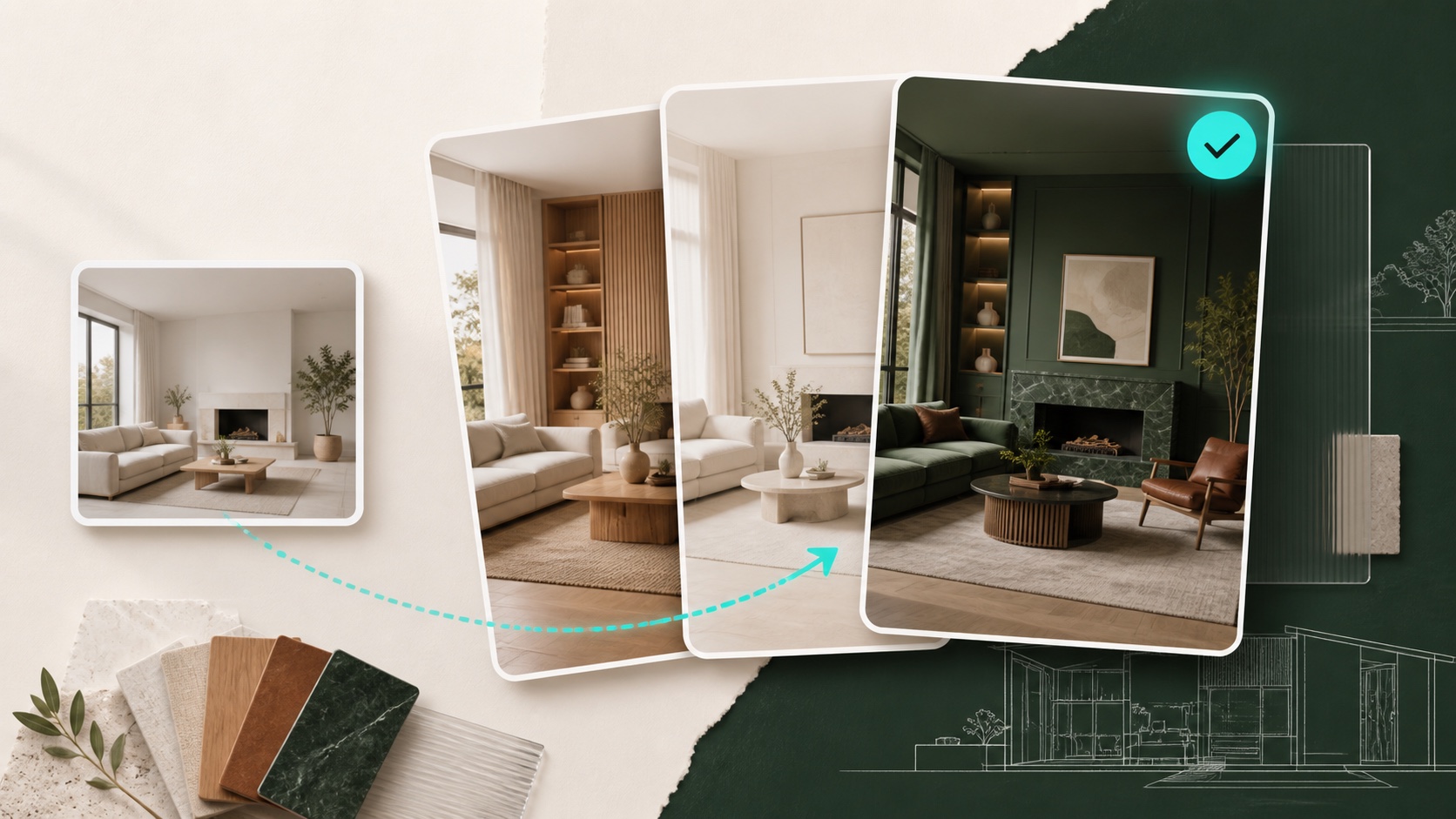
Use each visual concept to align on what feels right and what should change next.
Focused tools
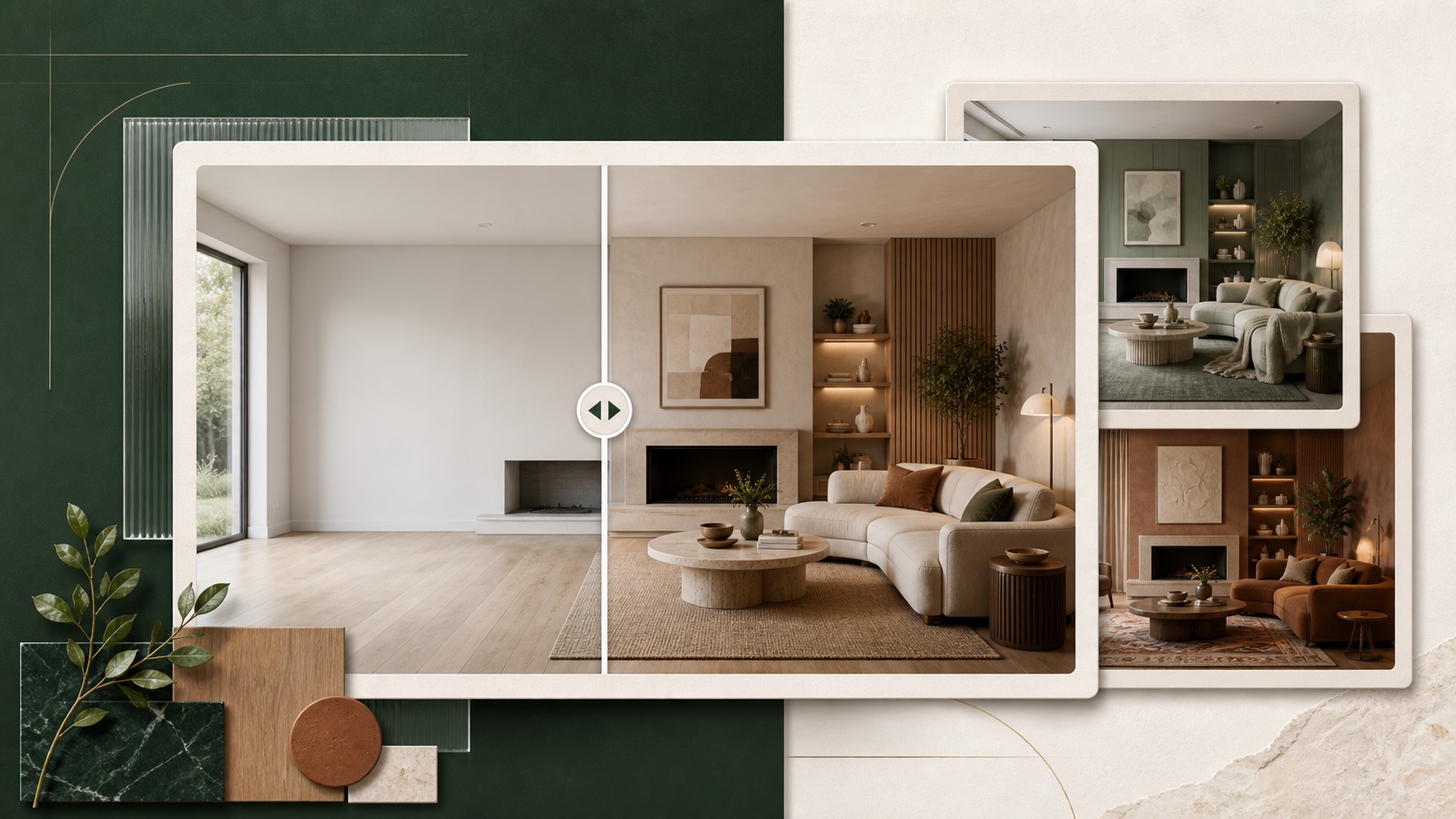
Move from clearing a room to rethinking its layout, details and atmosphere.
View all 9 features ↗Questions, answered
Visual concepts help exploration and communication. Measurements, feasibility and safety still need professional confirmation.
Read every answer ↗Use a clear, well-lit image that shows as much of the room or outdoor area as possible. A straight, uncropped view usually gives the most useful visual context.
Yes. Garden Design explores planting and outdoor living ideas, while Exterior Design focuses on the building facade and the space around it.
Reference Style is designed for that workflow. Add an inspiration image to communicate a palette, texture or atmosphere that is difficult to describe in words.
No. Room.AI creates visual concepts for exploration and communication. Confirm measurements, materials, feasibility and safety with qualified professionals.
Ready when your room is
Start exploring your space from a photo with Room.AI on mobile.